Change or delete an address book
Change an address book’s name, visibility, or members. You must own the address book to change or delete it.

Change address book settings
Only the address book owner can change its settings.
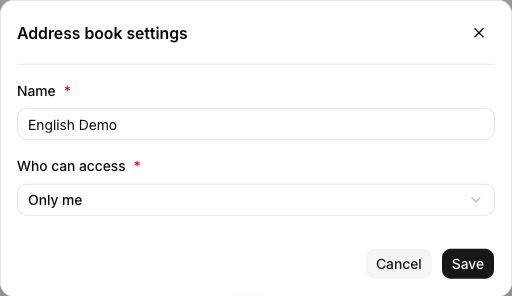
- At the upper left of the page, select the gear icon to the right of the current address book name.
- Select Edit.
- Change Name or Who can access.
- If you use Selected members, adjust who can access the address book.
- Select Save.
| Setting | What changes |
|---|---|
| Name | Contacts stay in place; only the address book name changes. |
| Who can access | Access changes to match the new visibility. |
| Members | Removed members can no longer see the address book. Its contacts remain. |
If the settings icon is unavailable, first check whether you created the address book. Members cannot change the settings of an address book shared with them.
Delete an address book
Only the owner can delete an address book. The default My Address Book cannot be deleted.
- Select the address book you want to delete.
- At the upper left of the page, select the gear icon to the right of its name.
- Select Delete.
- Check the address book name in the confirmation dialog, then select Delete.
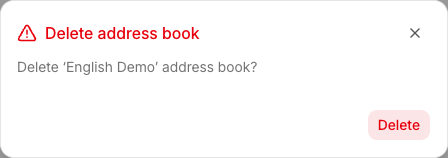
Deleting an address book may also remove every contact in it. Review its contacts and shared members, and save any information you need first.
Related guides
Last updated on