Add, edit, and delete contacts

Add a contact
- Select the address book where you want to save the contact.
- Select Add contact.
- Enter the Name and any other details you need.
- To add a business card image, select Upload photo under Front or Back.
- Select Save.
The contact is saved in the currently selected address book. Check its visibility before adding a contact to a shared address book.
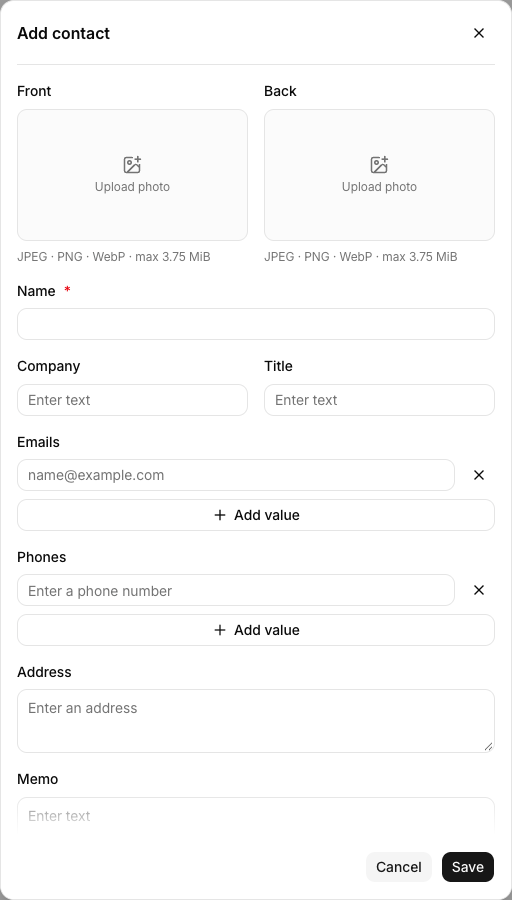
Contact fields
| Field | Description |
|---|---|
| Name | Required. |
| Company · Title | Organization information. |
| Emails · Phones | You can save more than one value. |
| Address · Memo | Free-form information. |
| Custom fields | Fields created for this address book. They may differ between address books. |
Edit a contact
Select a contact’s Name in the list to open Edit. Change the values and select Save. In a shared address book, the updated details are visible to everyone who can access it.
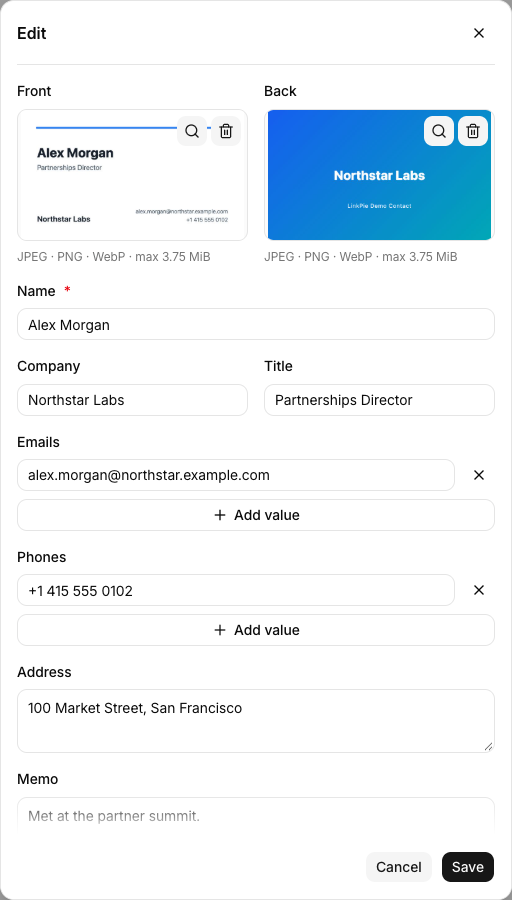
If you only have read permission, you can view a contact but cannot save changes. Cancel or close the form to leave without saving.
Delete a contact
- Find the row containing the contact you want to delete.
- At the far right end of that row, select the ⋮ menu. If it is off-screen, scroll the table all the way to the right.
- Select Delete.
- Check the contact name in the confirmation dialog, then select Delete.

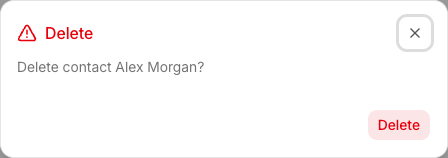
A deleted contact may not be recoverable. In a shared address book, it also disappears for other members.
Related guides
Last updated on