Connect LinkPie
Install LinkPie from AIP’s MCP catalog, save the connection as LinkPie, and enable it in the conversation where you need it.
Find and install LinkPie
- Open a new or existing conversation in AIP.
- Select Use MCP in the message composer.
- Select Explore MCP.
- Enter
LinkPiein Search integrations. - Select the LinkPie card.
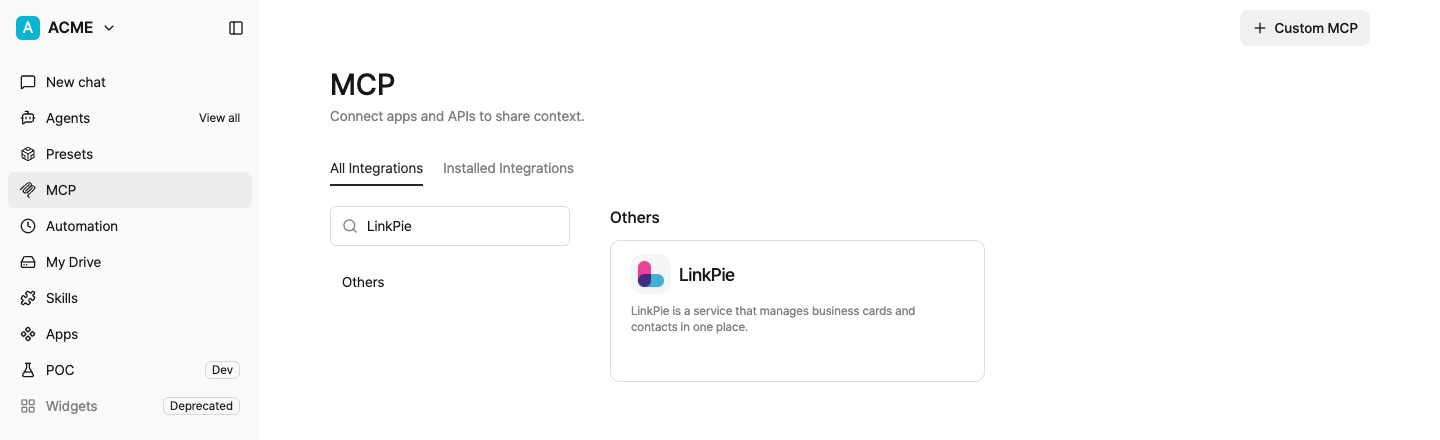
From the search results, choose the built-in card whose name is exactly LinkPie.
If the result already shows Installed, skip to Enable LinkPie in a conversation.
- On the LinkPie setup screen, make sure Name is exactly
LinkPie. - Select Install and finish any confirmation shown by AIP.
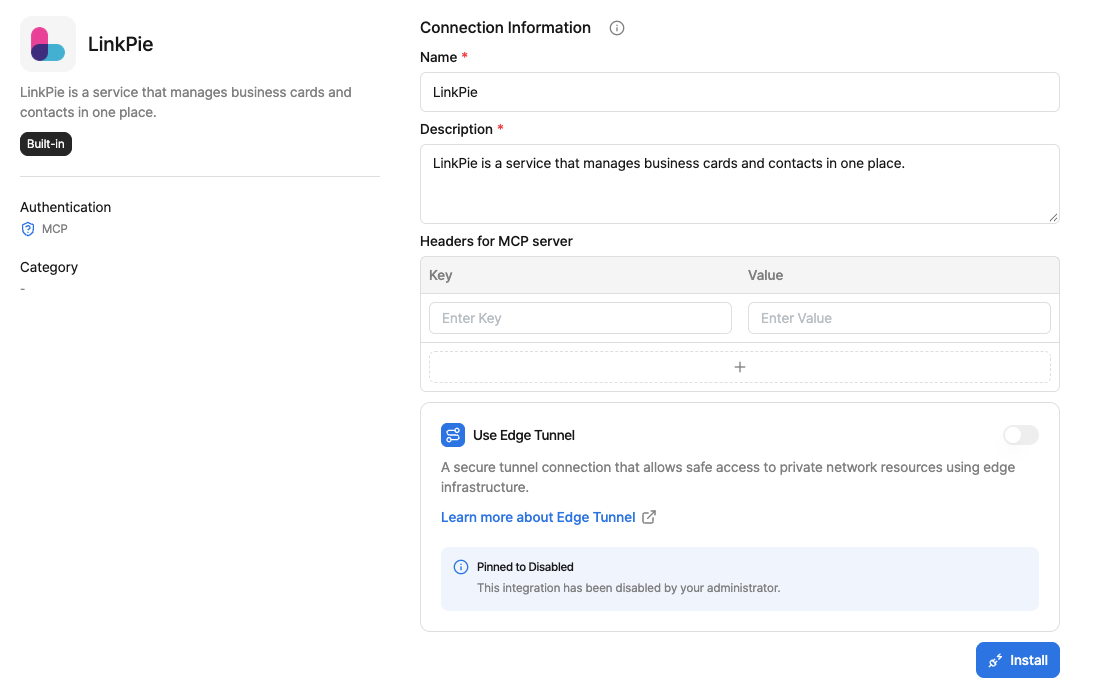
Installation availability can depend on your organization’s policy and your permissions. If Install is unavailable, ask an organization administrator to install or allow LinkPie.
Enable LinkPie in a conversation
- Return to the conversation.
- Select Use MCP in the message composer.
- Turn on LinkPie.
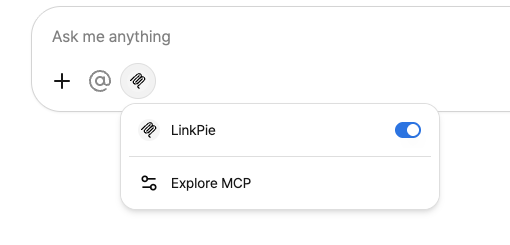
- Ask for a contact in natural language.
For example:
Show the LinkPie address books and contacts I can access.
Show Alex Morgan’s contact details from the English Demo address book.
You may need to enable LinkPie separately for each conversation. If AIP cannot find a contact, first check that LinkPie is on under Use MCP.
Use the contact results
See Manage contacts in AIP to add a contact from a business card, view its details, and edit it in the widget.