Manage contacts in AIP
Add a contact from a business card in an AIP conversation, then check and edit it in the LinkPie widget. First connect LinkPie.
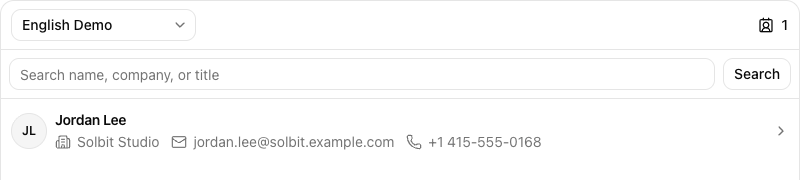
Add a contact from a business card
- Open the + menu in the message composer and upload a business card image from your computer.
- Ask AIP to read the card, then check the details.
Read this business card and show me the contact details.
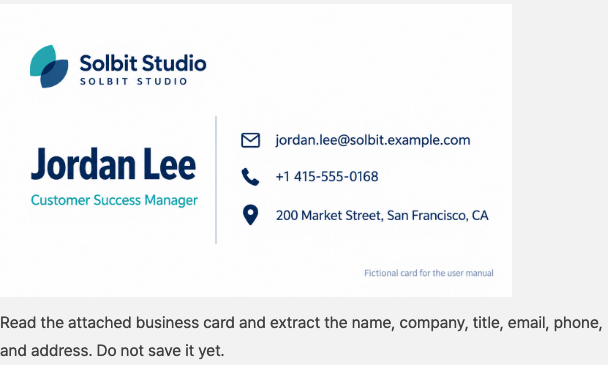
- Name the address book where you want to save the contact.
Add this contact to English Demo, then show it in the LinkPie widget.
When the contact appears in the widget, select its row to check the saved details.
View contact details
Choose an address book at the top of the widget. To find a contact, enter a name or company and select Search. Select the contact row to open its details.
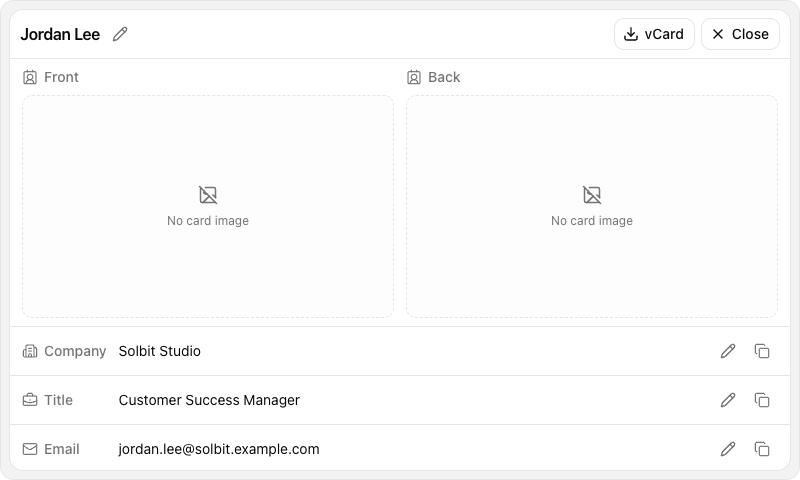
Edit a contact
- Select the pencil icon beside the value you want to change.
- Enter the new value and select the checkmark (Save).

After saving, check the updated value. Select Close to return to the list.

Only fields with a pencil icon can be edited. You need permission to edit the contact. To add or change the address book’s field definitions, its owner must use contact field settings.
Last updated on