Set up contact fields
Add information such as a department or customer category. Fields belong to the selected address book.

Add a custom field to an address book
If you need information beyond the default fields, select Add field on the right side of the table.
- Enter a clear Field name.
- Choose a Type that matches the value you will store.
- Set the Number of values and whether the field is Required, if needed.
- Select Add field.
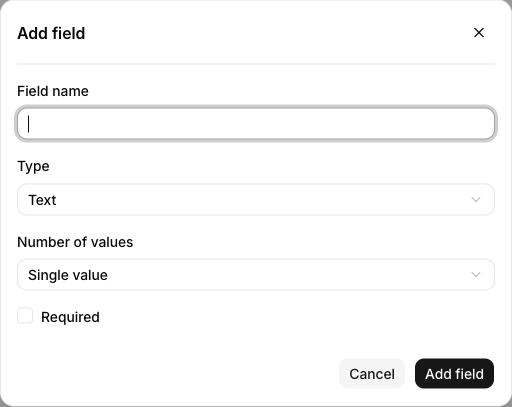
Available types include:
| Type | Example use |
|---|---|
| Text | Department, product, relationship |
| Number | Customer score, contract count |
| Boolean | A yes/no state such as newsletter consent |
| Date | Birthday, contract date |
| Date and time | Meeting time, last-contacted time |
| Secondary email | |
| Phone | Extension, secondary phone |
| URL | Company website, profile link |
| Address | Office address, shipping address |

The new field applies to every contact in this address book and is visible to everyone who can access it. Open a contact to enter its value.
- Single value: Store one value per contact.
- Multiple values: Use Add value to add entries or remove them individually.
- Required: Fill in the field before saving a contact.
To add a field, you must own the address book and have contact update permission.
Edit a custom field
An address book owner can change the name and settings of a custom field.
- Find the field name in the contact table header. If it is off-screen, scroll the table horizontally.
- Select the ⋮ menu immediately to the right of the field name.
- Select Edit.
- Change the Field name, Number of values, or Required setting.
- Select Save.

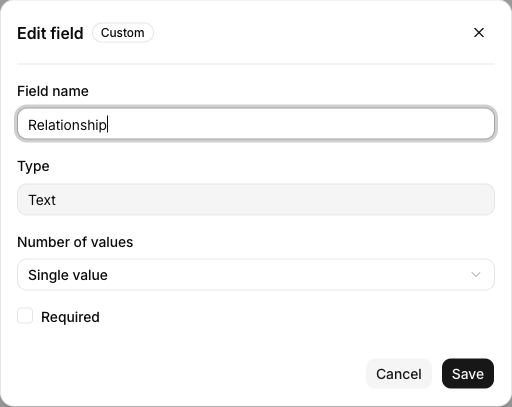
You cannot change a field’s type after creating it. If the type is wrong, preserve any needed values and add a new field. If the field action menu is unavailable, ask the address book owner to change the setting.
The name field remains required and accepts one value. Some built-in fields can be edited through the same header menu, but protected settings are disabled. The current field menu provides editing; it has no field deletion action.