Manage business card images
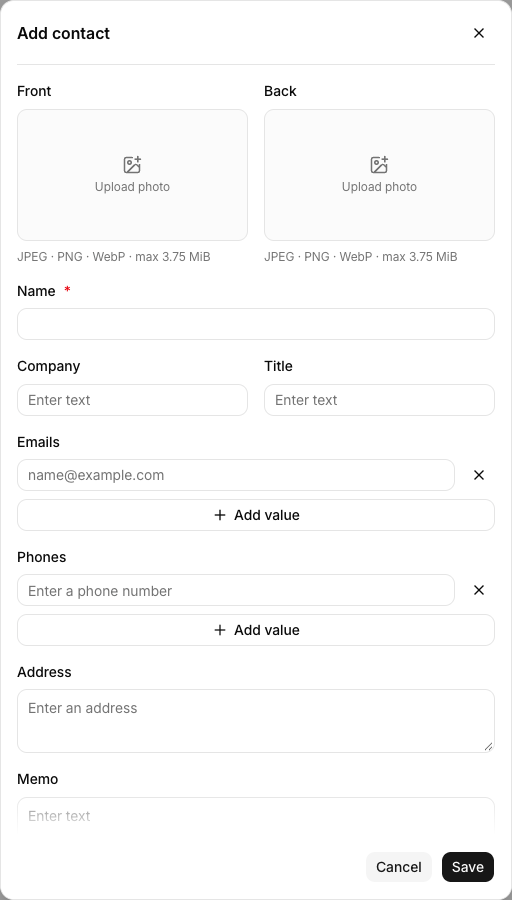
- Each contact can have one front and one back business card image.
- Supported formats are JPEG, PNG, and WebP, with a maximum size of 3.75 MiB per image.
Add a business card image
- Open a contact or select Add contact.
- Select Upload photo under Front or Back, then choose an image.
- Select Save.
View and download a business card
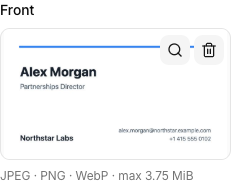
- Select the business card thumbnail in the contact list.
- If both sides are available, use View back or View front to switch sides.
- Select Download if you need the image file.

Use the maximize control in the preview header for a larger view. If only the back image is saved, LinkPie shows that image first. Switching sides is available when both images exist.
Replace or remove a business card image
- Select the contact’s name to open Edit.
- In the business card area, select Replace photo, Preview photo, or Remove photo.
- Select Save.
After changing an image, select Save to apply the change.
Related guides
Last updated on