AIP Agents
Connect AIP Agents to Lingo AI to combine meeting context with other business systems and complete follow-up tasks. Enable an AIP Agent in Lingo settings before selecting it in a Lingo AI question.
AIP Agent functionality is available in all production environments. The AIP Agents you can select and the tasks they can perform depend on your organization’s AIP configuration and your permissions.
Open AIP Agent settings
- Select the user menu at the bottom of the sidebar.
- Select Settings.
- Select Agents in the settings menu.
The list shows each AIP Agent’s name, description, and current status. You can also search by name.
Configure AIP Agent requirements
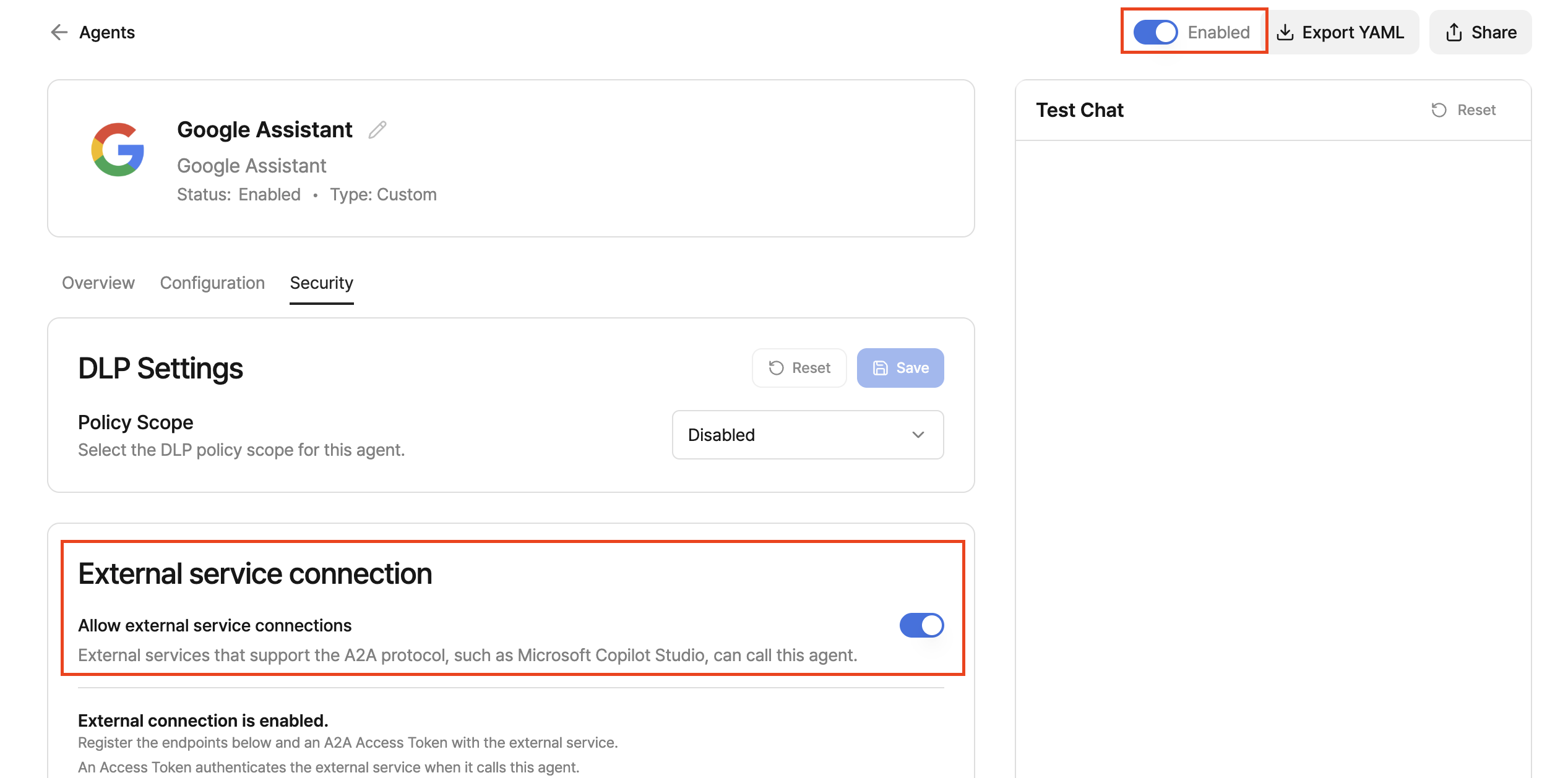
Before you can use an AIP Agent in Lingo, make sure it meets all of the following requirements in its AIP settings.
If you can manage the organization, select Detailed settings or Manage Agents in AIP from the Agents list in Lingo to open its AIP settings in a new tab.
- Open the AIP Agent you want to use in AIP.
- On the Overview tab, enter a Description and save it. Without a description, Lingo cannot determine when to call the AIP Agent and marks it as Unavailable.
- Open the Security tab.
- Under External service connection, turn on Allow external service connections.
- For an organization AIP Agent, make sure its status is Enabled. Lingo cannot use an organization AIP Agent that is not enabled.
Enable an AIP Agent in Lingo
Turn on the switch next to an AIP Agent to make it available in Lingo AI. Select the row to review its short and detailed descriptions or change the same setting in the detail dialog.
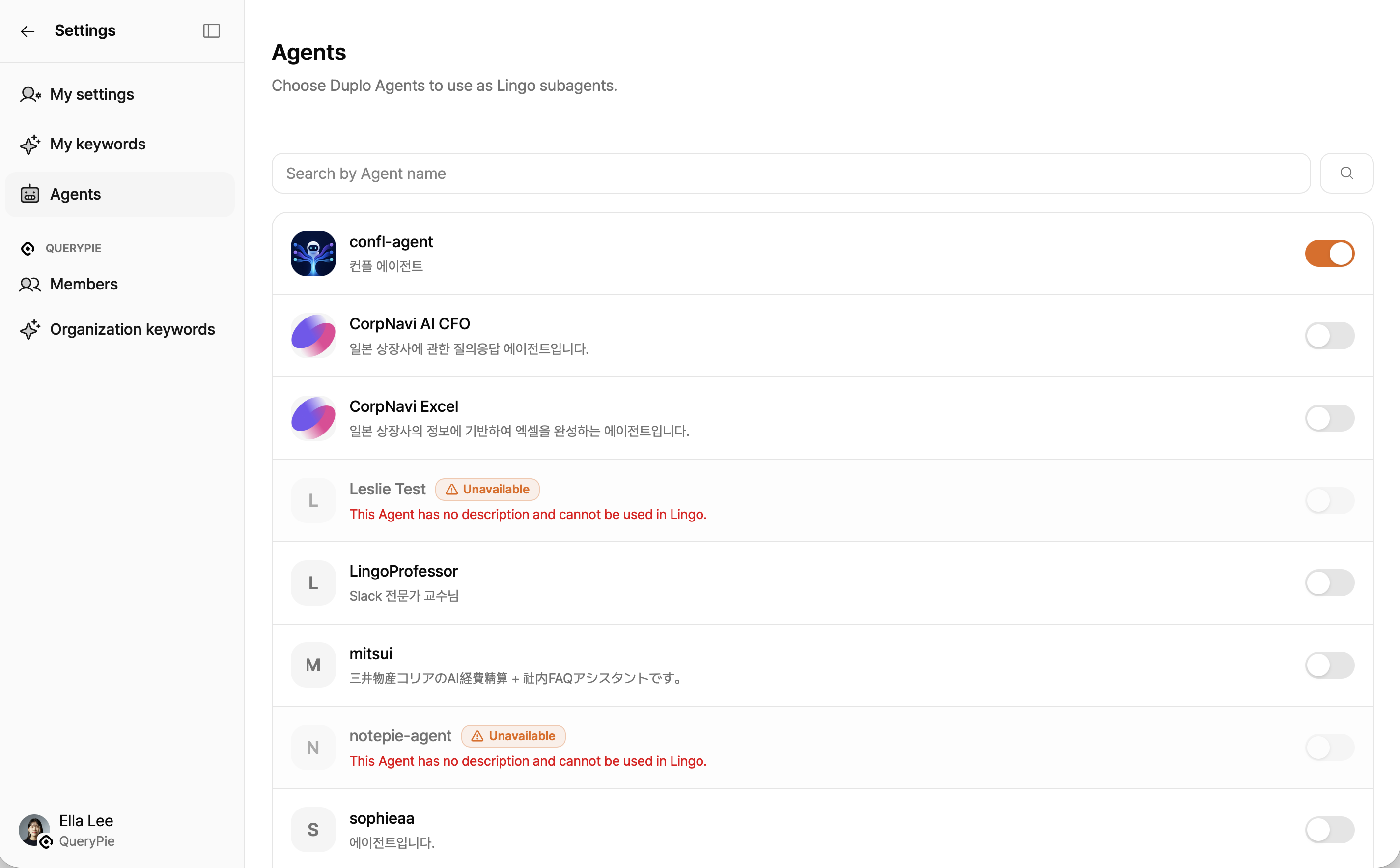
You cannot select an AIP Agent with either of these statuses:
- Unavailable: the AIP Agent has no description that Lingo can use to determine when to call it.
- Disabled: Allow external service connections is off in AIP, or the organization AIP Agent is not enabled.
If an AIP Agent you previously used becomes disabled, you can remove it from Lingo. Contact an AIP administrator if its AIP configuration needs to be changed.
Add AIP Agents to a Lingo AI question
You can select AIP Agents in two ways.
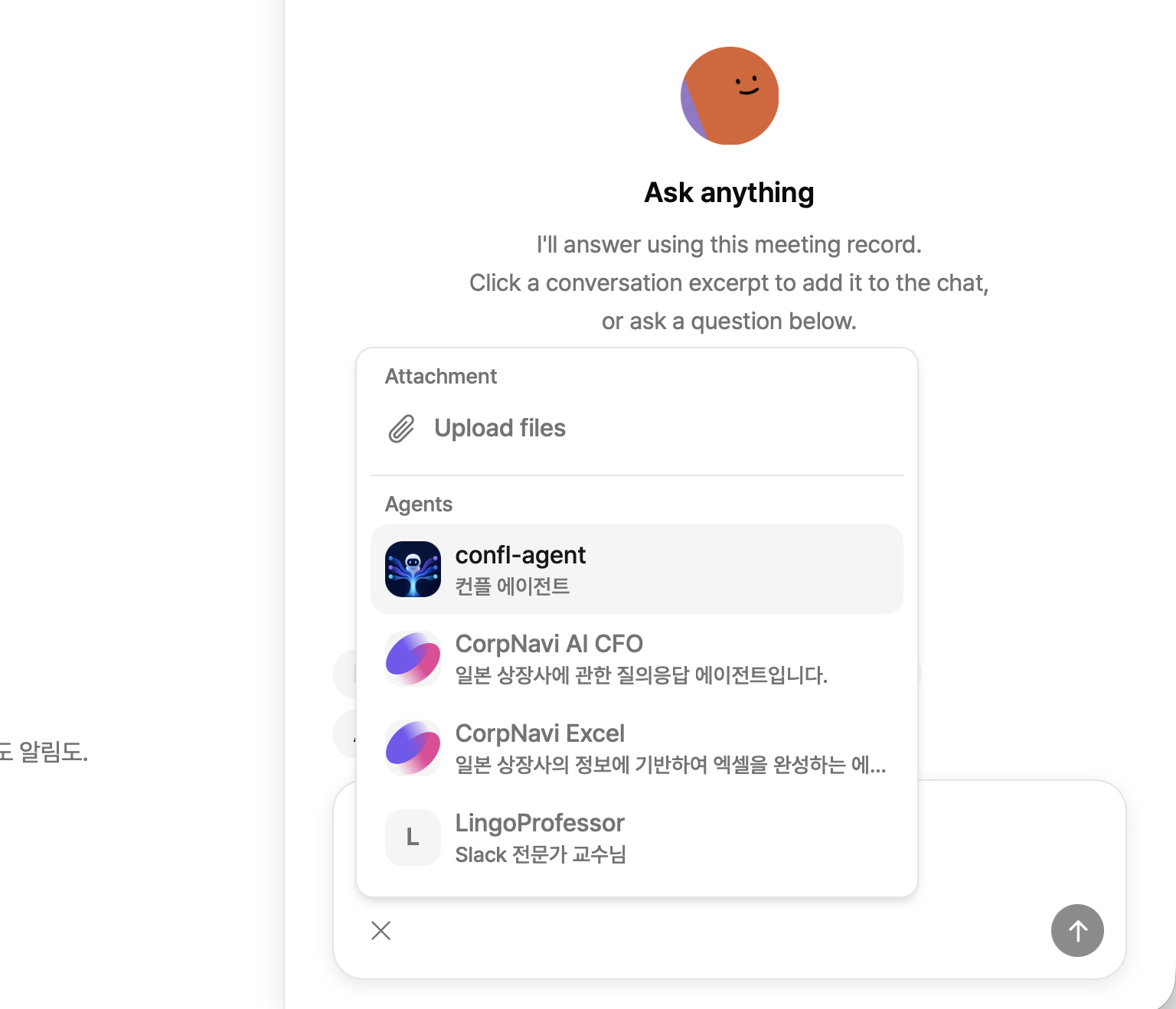
Select from the add menu
- Select the + button on the left side of the composer.
- Select the AIP Agents you need under Agents.
- Enter and send your question.
Search with @
- Type
@followed by an AIP Agent name while writing your question. - Select an AIP Agent from the results.
- Confirm its AIP Agent chip in the composer and send the question.
You can select up to 10 AIP Agents in one question. The same AIP Agent is not added twice. Remove it with the chip’s remove button or by clearing its selection in the add menu.
Lingo AI may not call a selected AIP Agent when it is not relevant to the question. State the task and target system clearly in your request.
Review files and results
You can attach audio, images, text, and other file types to Lingo AI. Files returned by an AIP Agent appear as cards in the response and can be previewed or downloaded. Some formats are available for download only.
Attachments and AIP Agent result files remain available until the expiration time shown on screen. After a file expires, attach the original again or ask the AIP Agent to regenerate the result.
Troubleshooting
| Situation | What to check |
|---|---|
| No AIP Agent is available | Confirm that it is enabled under Settings → Agents. |
| Unavailable | Add an AIP Agent description in AIP and check again. |
| Disabled | Check Security → External service connection in AIP and the organization AIP Agent’s enabled status. |
| No AIP Agent result | Describe the AIP Agent task and target system more specifically. |
| A file cannot be opened | Check the file expiration time and your access to the organization and meeting. |