Settings
Use Settings to manage display and meeting defaults and open the AIP Agent, keyword, and organization management pages.
Select Settings from the user menu to open My settings. Select Back to workspace at the top of the settings sidebar to return to Lingo.
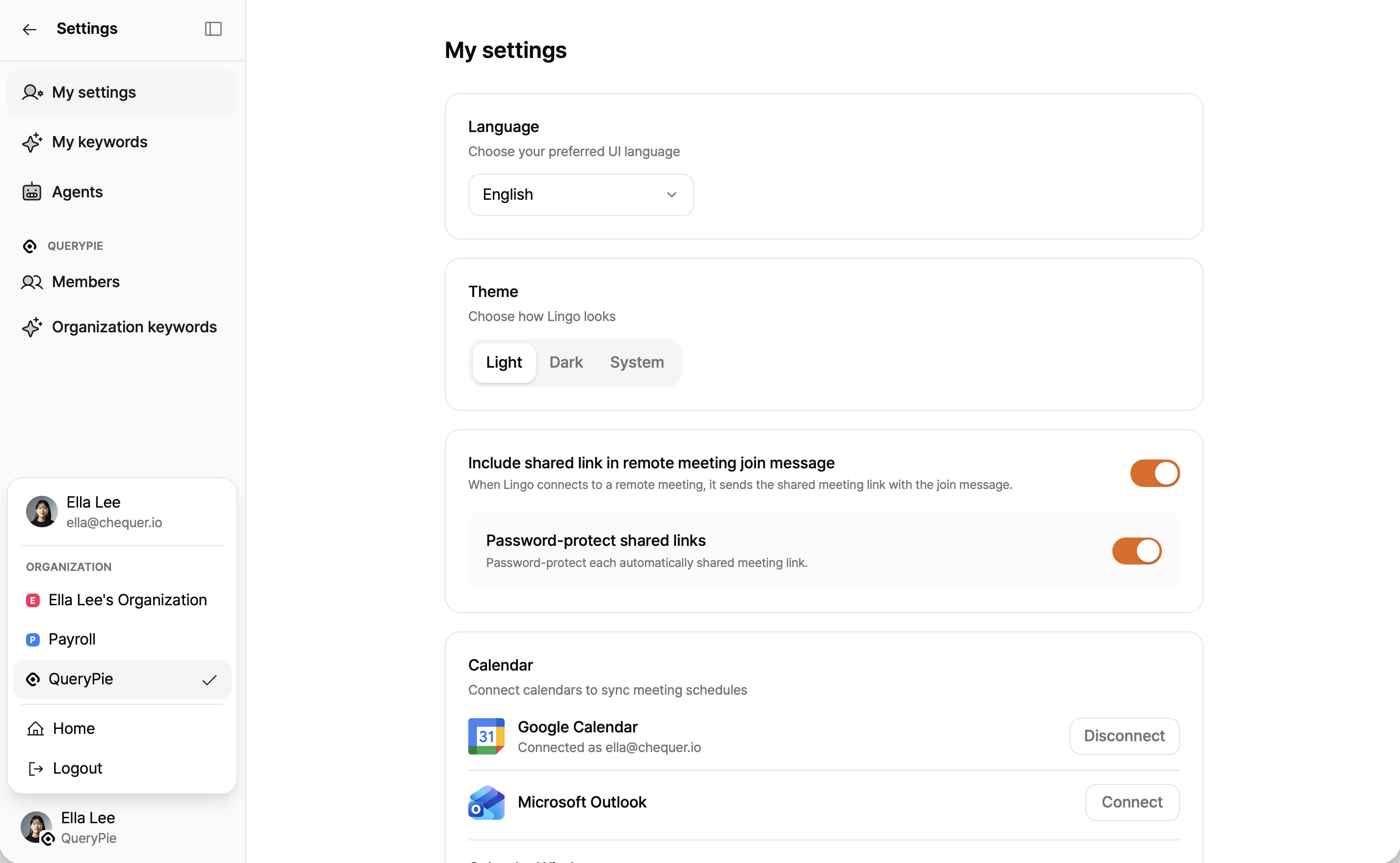
Settings menu
| Section | Menu | Description |
|---|---|---|
| Personal | My settings | Manage UI language, theme, calendar window and connections, and remote-sharing defaults. |
| Personal | My keywords | Manage proper nouns and specialist terms for your meetings. |
| Personal | Agents | Select the AIP Agents available in Lingo AI. |
| Organization | Member management | Review members and roles and change roles when permitted. |
| Organization | Organization keywords | Review shared keywords and edit them when permitted. |
On a mobile viewport, use the menu button in the settings header to open the settings menu.
Language and theme
- Language: Select Korean, English, or Japanese for the Lingo UI. The change is applied immediately and saved to your account.
- Theme: Select light, dark, or system theme.
Calendar window
Calendar window controls how many days of events appear on the Calendar page. Choose 1, 3, 5, 7, 14, 21, or 28 days. The default is 7 days.
Remote meeting sharing
You can include a public sharing link in the chat message Lingo posts when it joins a remote meeting.
- Include sharing link in remote meeting join message: posts the sharing link when Lingo joins.
- Password-protect sharing link: protects automatically shared links with a password.
Changes apply to subsequent meetings. Lingo reports the number of scheduled meetings it could not update, if any.
Calendar connections
Connect or disconnect Google Calendar and Microsoft Outlook accounts.
| Status | Display |
|---|---|
| Not connected | Connect |
| Connected | Connected email and Disconnect |
| Authentication expired or sync failed | Error and Reconnect |
| Connecting | Setting up… |
After authentication, events with meeting URLs appear on Calendar. Select Reconnect when authentication expires.