Meetings
Use Meetings to search completed conversations, interpretation records, and sharing information and organize them with personal tags.
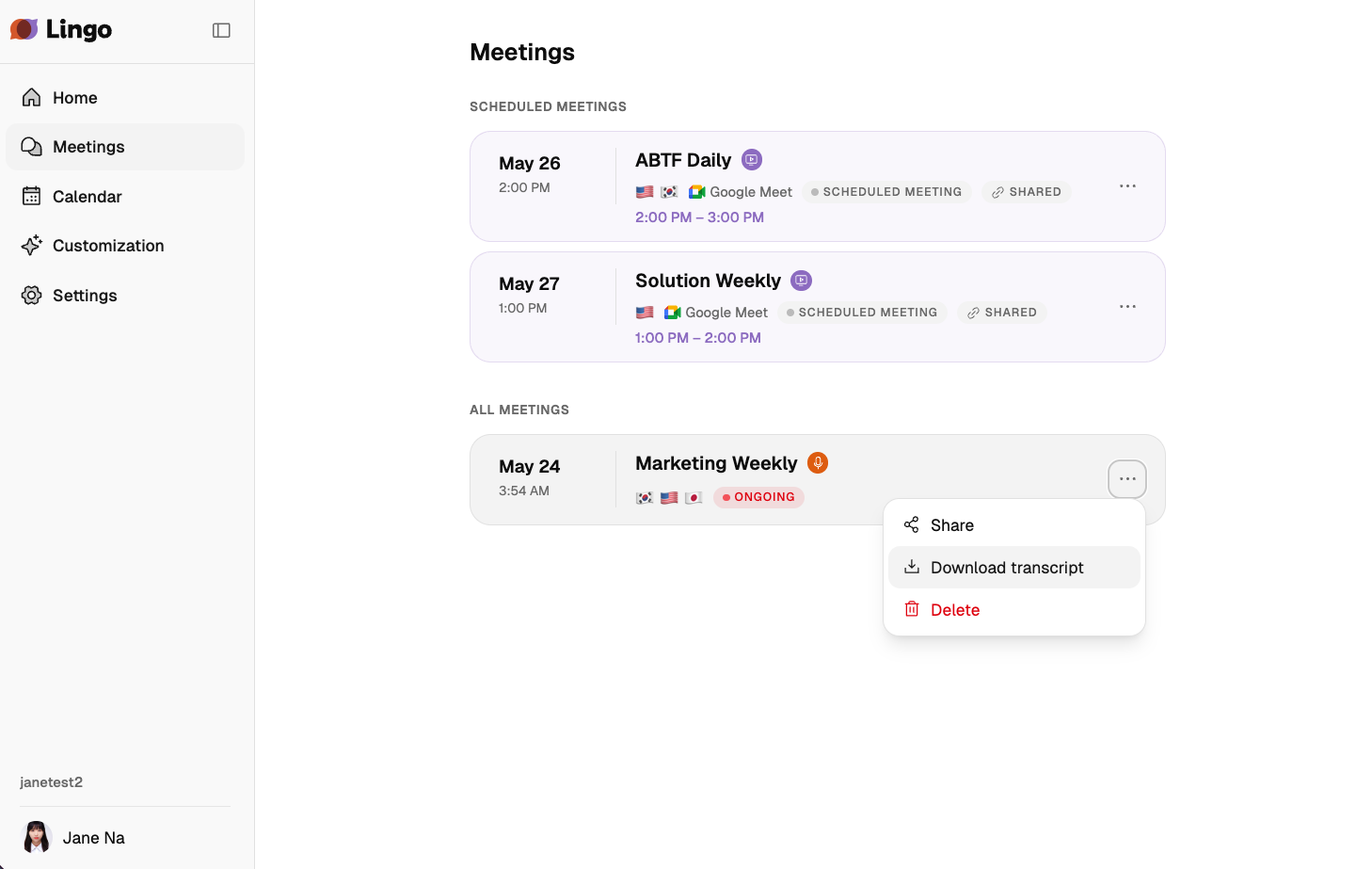
Find meetings
Combine these filters to narrow the list:
- Meeting title search
- Date range
- Meeting type: regular meeting, real-time interpretation, or audio file
- Owner
- Tag: a personal tag or Untagged
Select Clear filters to remove all conditions. Filters are reflected in the URL, so refreshing or reopening the link restores the same view.
List and tag views
Choose either meeting view:
- List: view all meetings chronologically and use the tag filter.
- By tag: group meetings by tag. Meetings without a personal tag appear under Untagged.
Lingo saves your view preference and expanded tag groups.
Organize meetings with personal tags
Tags are private to each user and can also be added to meetings shared with you. Other users cannot see your tags.
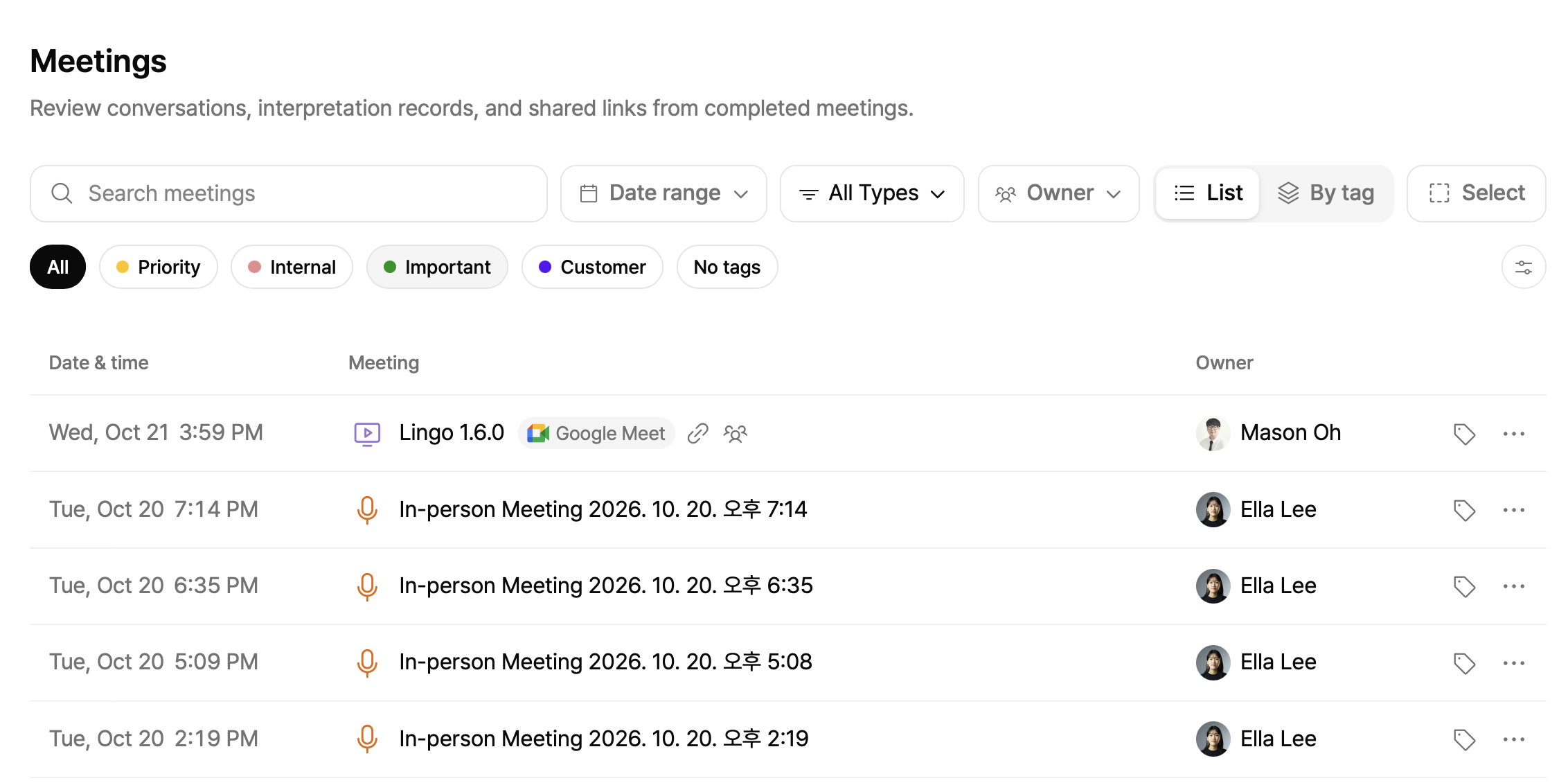
Create and assign a tag
- Select the tag edit button in a meeting row.
- Select an existing tag or search by name.
- If the tag does not exist, create it with the entered name and add it to the current meeting.
The tag appears as a colored chip in the row. Clear its checkbox in the popover to remove it from that meeting.
Manage tags
Select Manage tags in the tag filter area to:
- Set a tag name and color
- Use a preset color or a
#RRGGBBHEX value - Edit a tag’s name and color
- Delete a tag
You can create up to 100 personal tags. Names that differ only by case or surrounding spaces count as duplicates. Deleting a tag does not delete any meeting.
All meetings
Each completed meeting row shows:
- Date and time, title, and owner
- In-person, remote, audio upload, or real-time interpretation type
- Completed, cancelled, shared, and other relevant states
- Selected languages and personal tags
Depending on your access and the meeting state, the more-actions menu can include Share, Download transcript, Edit settings, Delete, and Remove bot.
Meeting detail
On the detail page, review the transcript and translations and use these actions:
- Edit the meeting title and settings
- Share within the organization or by public link
- Download the transcript
- Generate an AI Summary
- Ask Lingo AI
- Open presentation mode
- Show all languages or one language
People with access to a shared meeting can use the transcript, translations, presentation mode, downloads, AI Summary, and Lingo AI within their granted permissions. Owner-only actions, such as deleting the meeting or changing its sharing scope, are hidden.
Change languages during a meeting
You can change the title and languages of a live in-person or remote meeting.
- Select Edit from the meeting row’s more menu.
- Add or remove languages.
- Select Save changes.
- Review the added and removed languages in Change meeting languages?, then select Change and save.
Language changes apply only to speech after the save. Earlier speech is not translated again, and captions can be delayed for a few seconds while recognition restarts. A removed language stops appearing as a live translation on participant and shared screens.
While a meeting is in progress, you cannot change its URL, whether real-time translation is enabled, the participant language-selection setting, or the keyword source.
Share within the organization
Share a meeting with selected members or the entire organization.
- Select Share from the more menu or detail page.
- Open Organization sharing.
- Add members by name or organization email address, or turn on Share with entire organization.
Selected-member and entire-organization sharing can be used together. Turning off entire-organization sharing does not remove members you added separately. Recipients must sign in to Lingo and select the same organization.
Public sharing
Turn on Public sharing link to let people view the meeting without signing in. You can add an expiry and password and share the link or QR code.
The public shared page includes the presentation experience. Visitors can use these features directly without opening another mode:
- Live transcript and translations
- Transcript search
- Transcript download
- Link copy and QR code
- Display mode, translation language, text size, alignment, and theme
- Highlighting the current utterance and automatically following the latest caption
- Pinning or automatically hiding the header
An older /presentation sharing URL redirects to the same integrated shared page.
Let viewers select a translation language
When the meeting creator turns on Allow participants to select translation languages, signed-in organization members and people using a public link can each choose a translation language.
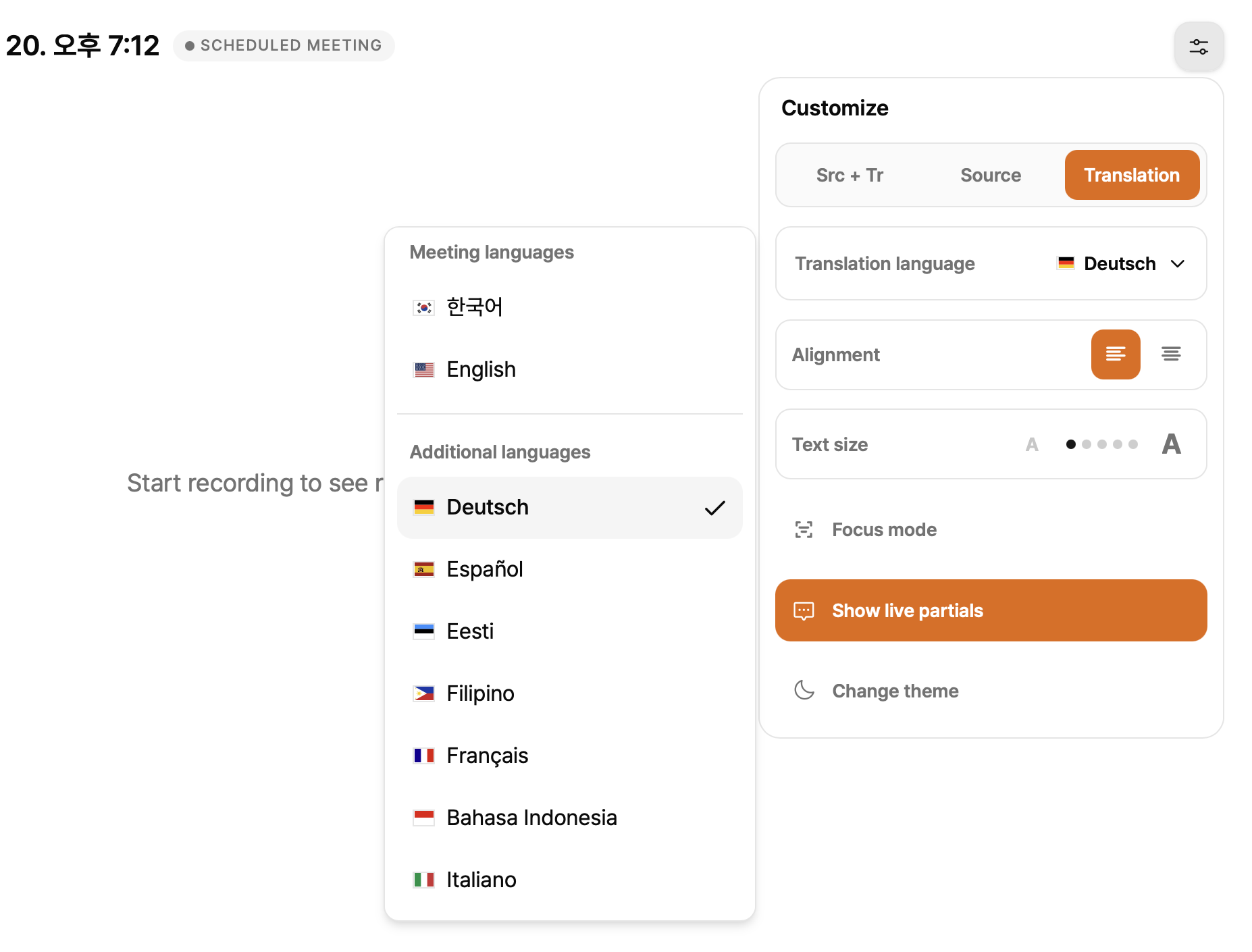
- Open settings on the shared or presentation page.
- Select Translation only as the display mode.
- Under Translation language, select a meeting language or an Additional language.
Lingo saves the selection in this browser for each combination of viewer or public link and meeting. During an ongoing meeting, translation into the selected language begins with subsequent utterances. Earlier speech remains as source text when no translation exists and is not translated again automatically.
Allow participants to select translation languages is available only when real-time translation is enabled.
Presentation mode
Presentation mode simplifies the interface so you can focus on the transcript and translation. On the web, select the presentation icon in the meeting header to open it in a new tab.
Configure these options:
| Option | Description |
|---|---|
| Mode | Show Original + Translation, Original only, or Translation only. |
| Translation language | Select one language when the mode is Translation only. |
| Text size | Choose the caption text size. |
| Alignment | Align text left or center. |
| Theme | Select light or dark theme. |
| Emphasize current content | Highlight the latest utterance. |
Scrolling upward pauses automatic following and shows Jump to latest. Select it to resume following new captions.