Keywords
Use My keywords to register frequently used proper nouns so Lingo can recognize and translate them more accurately. Personal keywords are managed by you. When creating or scheduling a meeting, choose either your personal glossary or the organization’s glossary.
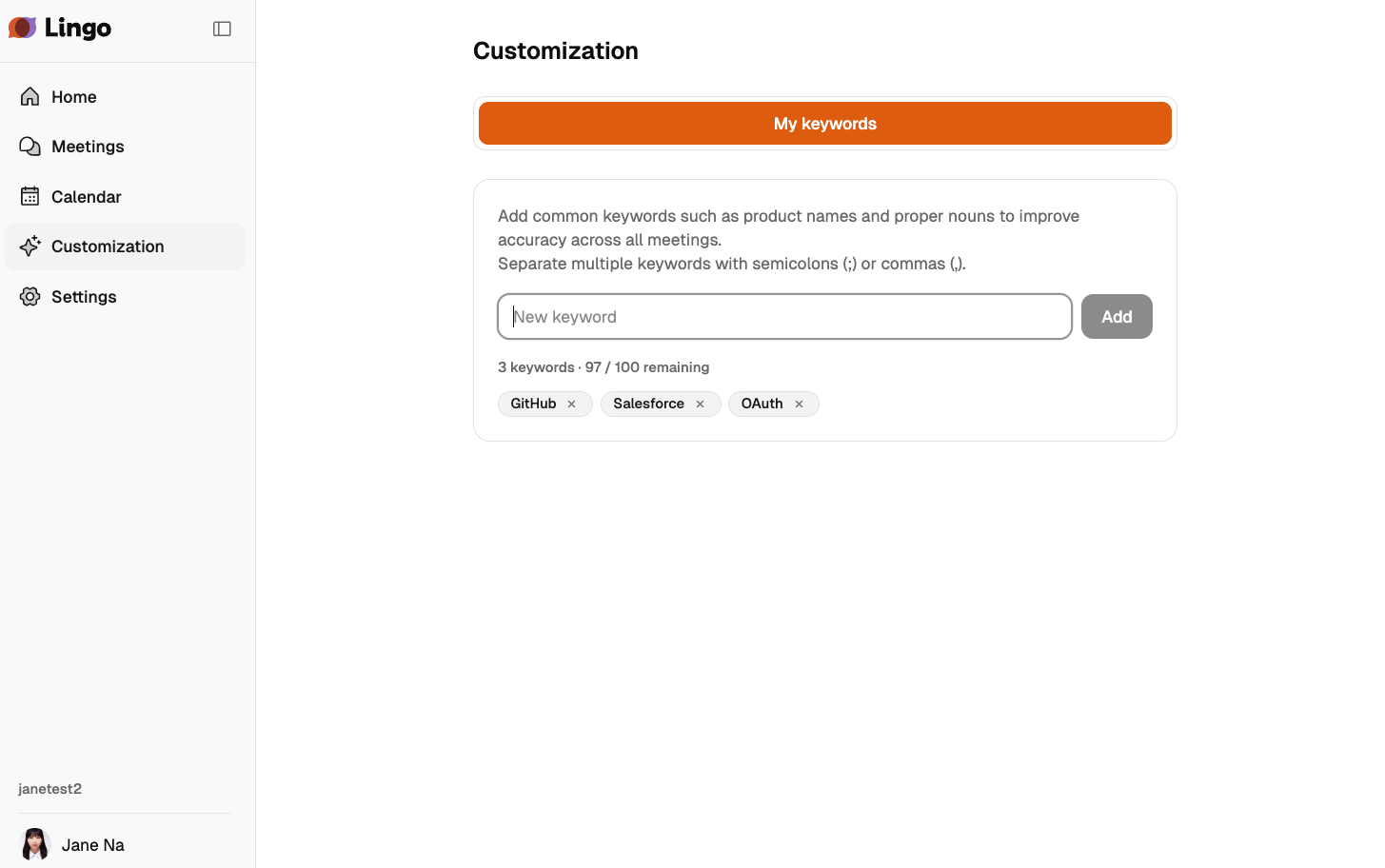
Open My keywords
Select Settings from the user menu, then select My keywords.
Manage keywords
Register words that appear often but can be difficult for speech recognition or translation, such as product names, company names, people names, acronyms, and technical terms. Registered keywords apply to future meetings that use your personal glossary. If an ongoing meeting is already using it, changes apply to new utterances after the update.
Keywords are managed in a table. Each row represents one proper noun, and each language column stores the spelling of that proper noun in that language.
For example, entering the Korean, English, and Japanese spellings in the same row helps Lingo recognize them as the same proper noun.
Add keywords
- Select a cell in an empty row.
- Enter the proper noun spelling.
- If the same proper noun has spellings in other languages, enter them in the other language columns in the same row.
- To add a new proper noun, select Add row at the bottom.
Click a cell to edit it inline. Changes are saved automatically. Saving… is shown while saving, and Auto-saved is shown when saving is complete.
Manage language columns
Korean, English, and Japanese columns are shown by default. To register spellings in more languages, select Add language in the top-right corner of the table.
The following languages can be used as language columns.
- Korean
- Japanese
- English
- Thai
- Vietnamese
- Chinese (Traditional)
- Chinese (Simplified)
- Estonian
- Spanish
- German
- French
- Portuguese
- Italian
- Indonesian
- Filipino
Deleting a language column also deletes the terms saved in that language. Before deletion, confirm the language to delete and the number of terms that will be deleted.
Keyword count and limits
- You can save up to 100 keyword rows.
- One row counts as one keyword even if multiple language cells are filled in.
- Each cell can contain up to 50 characters.
- Empty cells are not saved.
- Duplicate terms in the same language column cannot be saved. After you fix the duplicates, auto-save resumes.
The bottom of the screen shows the current number of registered proper nouns and how many more can be added.
Import keywords
You can register multiple keywords at once from a CSV or JSON file.
- On the My keywords screen, select Import.
- Check the file format example on the CSV or JSON tab. If needed, select Download template.
- Drag and drop a file, or select the upload area to choose one.
- Check the number of recognized keywords and select Import.
- Check how many keywords will be replaced, then select Replace all.
Importing keywords does not append new entries. Selecting Replace all deletes all currently registered keywords and replaces them with the file contents. Export your existing keywords first if you want to keep them.
Import files must follow these rules.
- The file extension must be
.csvor.json. - Use supported language codes such as
ko,en,ja, andfil-PHfor language headers or keys. - For CSV files, put the language codes in the first row and enter one keyword per subsequent row.
- JSON files must contain an array of objects, with one object per keyword.
- Empty cells are skipped, and only rows containing a value in at least one language are imported.
- You can import up to 100 keywords, with up to 50 characters per language value.
- The file cannot be imported if the same term is duplicated within a language or if a language code is repeated.
If the file format or contents are invalid, the upload area shows the cause and how to fix it. Correct the file as instructed, then select Choose another file to check it again.
Export keywords
You can save the currently registered keywords as a CSV or JSON file.
- On the My keywords screen, select Export.
- Select CSV or JSON.
- Check the file downloaded by your browser.
The exported file contains the language columns and keywords added on the screen. CSV is convenient for editing in a spreadsheet, while JSON is suitable for transferring data between systems or creating a backup. Keywords cannot be exported when none are registered.
Delete keywords
Select the delete icon on the right side of a row to delete that proper noun. The last empty row cannot be deleted.
Personal and organization keywords
Organization keywords are shared across the organization. Owners and Admins can edit them, while Members have read-only access. See Organization Management.