Calendar
Calendar shows connected calendar events and lets you configure Lingo auto-join for each event.
Connect a calendar
If no calendar is connected, these connection options appear under Upcoming meetings.
- Google Calendar
- Microsoft Outlook
After you authorize an account, Upcoming meetings shows only events that include a meeting URL. Events without a meeting link are omitted because Lingo cannot join them.
Check upcoming meetings
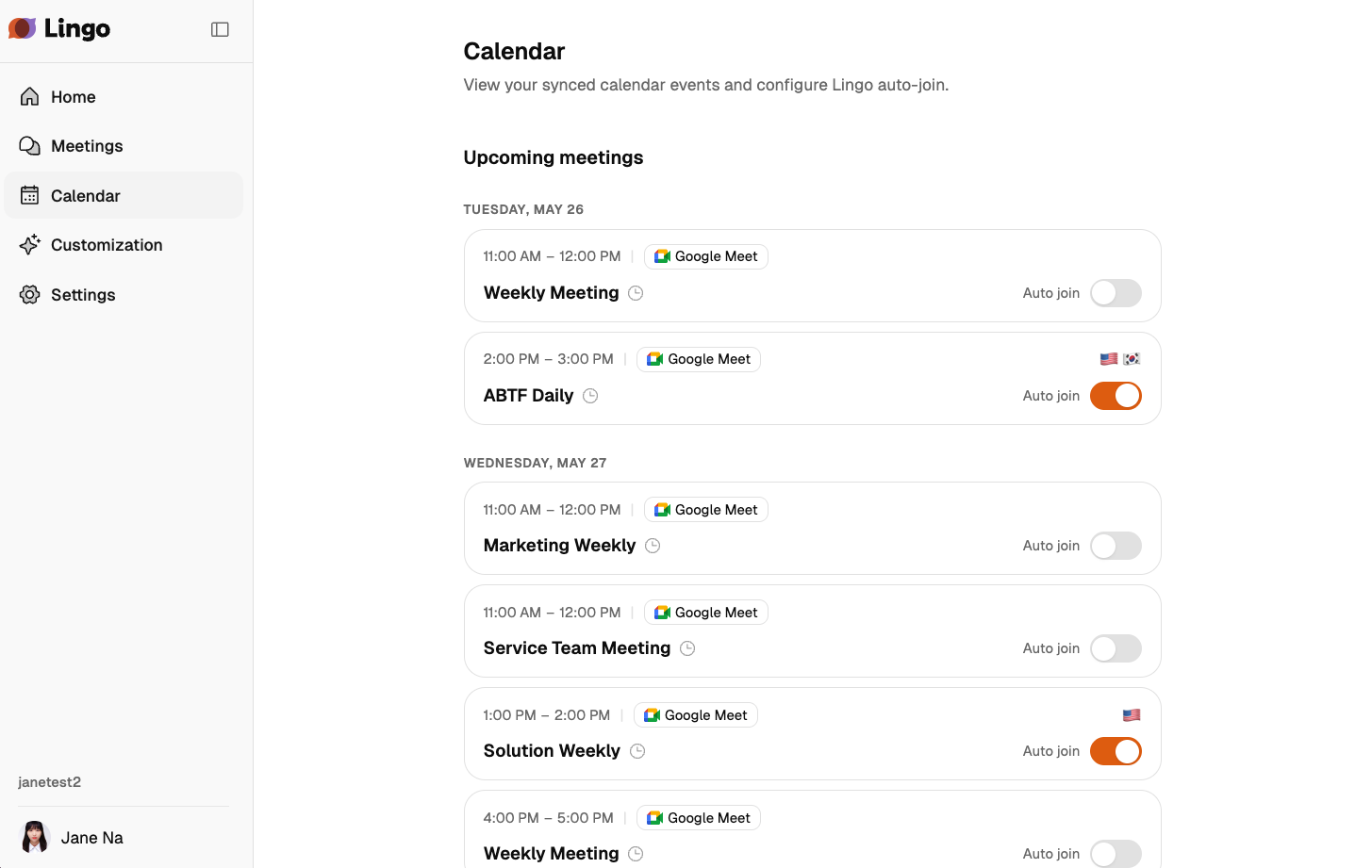
Meetings are grouped by date. Each card shows:
- Start and end time
- Meeting platform: Google Meet, Zoom, MS Teams
- Meeting title. If there is no title, (Untitled) is shown.
- Recurring event icon
- Auto join toggle
For events with Auto join turned on, the selected languages are shown as flag icons on the right side of the card.
Turn on auto-join
- Turn on Auto join on the event card.
- Select Source Language. You can select up to three languages.
- If translation is needed, turn on Enable Real-time Translation.
- To let shared viewers select another translation language, turn on Allow participants to select translation languages.
- Under Custom keywords, select My keywords or Organization keywords.
- Select Join Meeting.
- For a recurring meeting, choose the occurrences where Lingo should be scheduled.
- This and following meetings: Auto-join this meeting and following occurrences.
- All occurrences: Auto-join every occurrence in the recurring event.
- This meeting only: Auto-join only the selected meeting.
When setup is complete, Auto join is turned on for the event and the selected languages appear on the card.
Turn off auto-join
Turn off Auto join on the event card to stop Lingo from joining that meeting.
If Lingo is scheduled for multiple occurrences in a recurring meeting, choose the removal scope.
- All occurrences: Remove Lingo auto-join from the entire recurring event.
- This meeting only: Remove Lingo auto-join only from the selected occurrence.
Connection status problems
If calendar sync fails, an error card for that calendar appears under Upcoming meetings. Select Reconnect on the error card to authorize again. If multiple calendars are connected, only events from the calendar that failed to sync are excluded from the list.