Real-time Interpreter
Real-time Interpreter recognizes speech while you hold the microphone button, then translates and plays it aloud in the selected language when you release the button. It is designed for short conversations and turn-by-turn, in-person communication.
Real-time Interpreter is a Beta feature and uses your organization’s AIP credits.
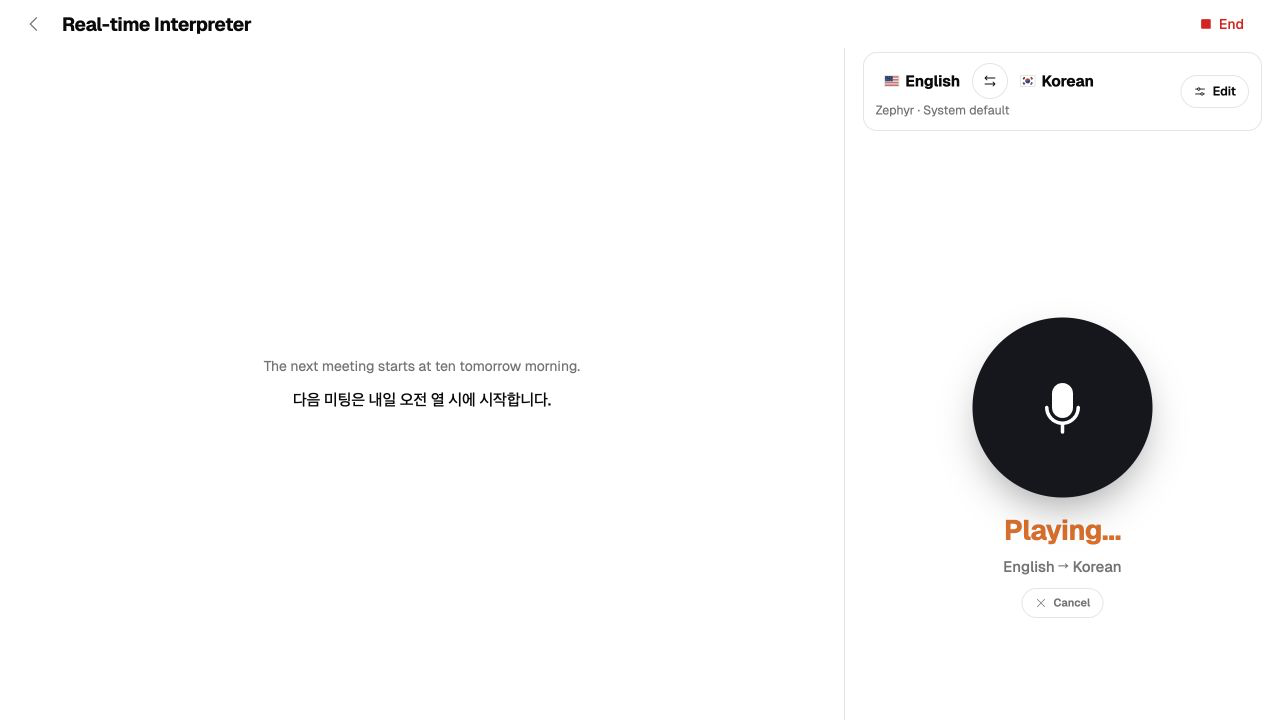
Start Real-time Interpreter
- In the meeting start area on Home, select Real-time Interpreter.
- If the browser asks for microphone access, select Allow.
- Check Your language, Their language, the output voice, and the microphone at the top of the screen.
- Hold the microphone button while speaking.
- Release the button when you finish.
- The translated sentence appears on screen and plays aloud in the other language.
If you have used Real-time Interpreter before, Lingo restores your last language pair and output voice.
Interpret a conversation
Each utterance moves through the following states.
| State | Description |
|---|---|
| Connecting… | Lingo is preparing the connection and microphone. |
| Hold to speak | The interpreter is ready. Hold the microphone button and speak. |
| Listening | Lingo is receiving your speech. Keep holding the button until you finish. |
| Translating… | Lingo is transcribing and translating your speech. |
| Playing… | Lingo displays the translation and plays it with the selected voice. |
While Lingo is translating or playing audio, select Cancel to stop the current turn and return to the ready state. You can also hold the microphone button during playback to interrupt it and begin a new utterance.
Lingo may not detect speech if you release the button too quickly or if the environment is noisy. If Didn’t catch that appears, hold the button longer, speak clearly, and select Try again.
Configure languages, voice, and devices
The top of the interpreter shows the current language pair, output voice, and microphone. Select the swap button between the languages to exchange Your language and Their language immediately.
Select Edit to change the settings during an interpretation session.
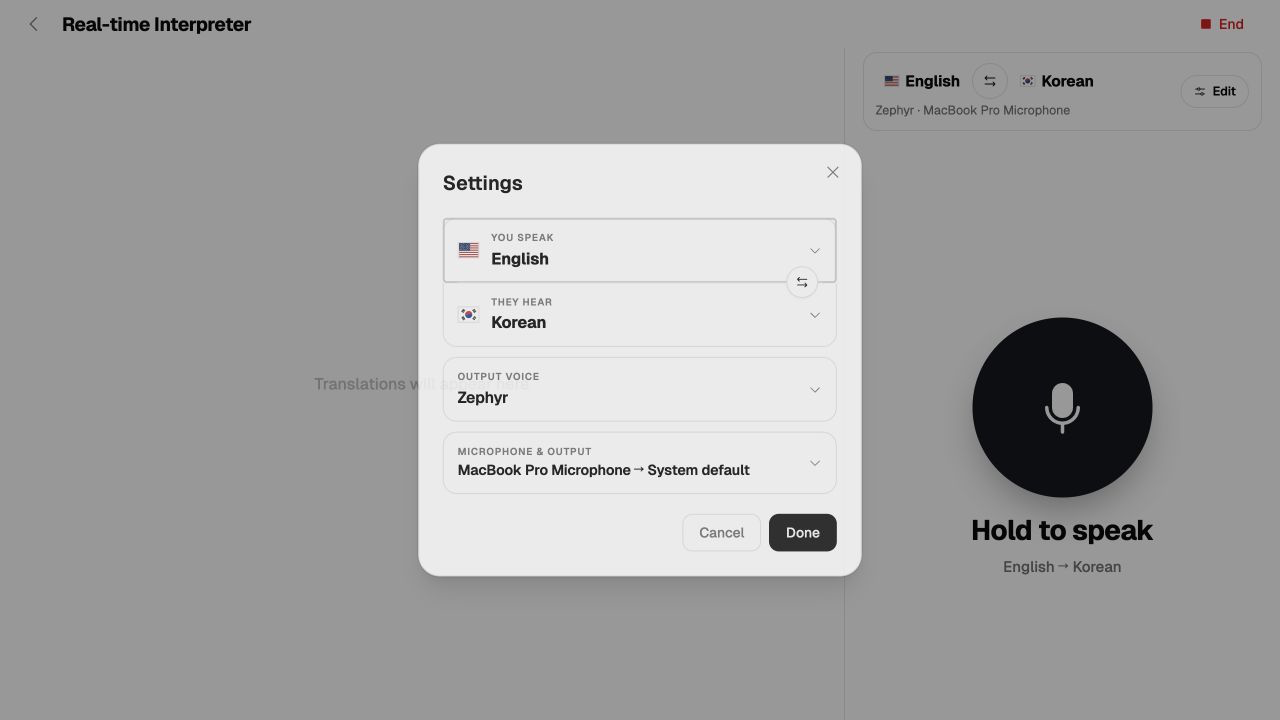
| Setting | Description |
|---|---|
| Your language | Select the language you will speak. |
| Their language | Select the language for the translated text and audio. It cannot be the same as Your language. |
| Swap languages | Exchange Your language and Their language. |
| Output voice | Select the voice used to play translations. You can preview voices that include a play button. |
| Microphone & output | Select the microphone and output device. When microphone access is allowed, you can also check the input level. |
Select Done to apply your changes. If you select Cancel or close the dialog, Lingo keeps the previous settings.
See Supported languages under Considerations for the available languages.
End or leave an interpretation
To finish the session, select End in the upper-right corner. Lingo saves the completed interpretation under Meetings.
If you only use the back button, the session remains available temporarily instead of ending immediately. When you select Real-time Interpreter again from Home, choose one of the following:
- Continue: Return to the ongoing interpretation.
- Start new: End the existing interpretation and start another one.
- Cancel: Close the prompt and stay on Home.
Review interpretation records
Completed interpretations are saved in the all meetings list under Meetings. Select Real-time Interpreter in the meeting type filter to show only interpretation records.
From an interpretation detail page, you can:
- Review the source and translation for each utterance
- Create a public sharing link
- Download the audio record
- Delete the record
Troubleshooting
| Situation | What to check |
|---|---|
| Microphone access is blocked | Allow microphone access for Lingo in the browser or device settings, then reconnect the microphone. |
| Didn’t catch that appears | Hold the button longer and speak clearly near the microphone. |
| The connection is lost | Check your network, end the interpreter screen, and start again. |
| Credits are insufficient | Add organization credits in AIP and try again. |