Lingo AI
Lingo AI answers questions using the transcript of an ongoing or completed meeting. You can summarize the meeting, identify decisions and action items, and add selected utterances, files, or AIP Agents to a question.
Lingo AI is a Beta feature and uses your organization’s AIP credits when generating an answer.
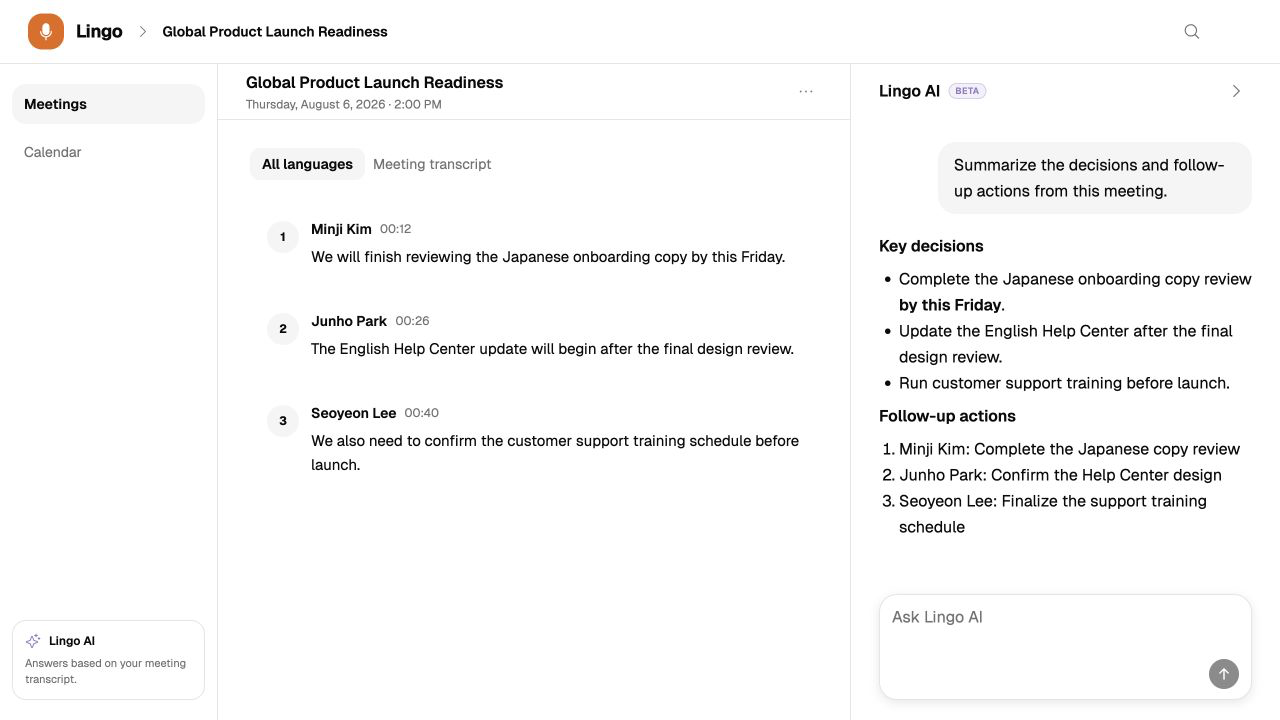
Open Lingo AI
Lingo AI is available from:
- An ongoing meeting screen
- The detail page of a completed meeting
Select the Lingo AI face icon button on the right side of the meeting screen to open the Lingo AI panel. To minimize the panel, select the collapse button in its header. If you minimize it while an answer is being generated, generation continues and the Lingo AI button indicates when a new answer is available.
On desktop, the transcript and Lingo AI appear side by side. Drag the panel’s left edge to adjust its width. On mobile, Lingo AI opens as a full-width panel.
Use a suggested question
A new chat provides frequently used questions. Selecting one sends it immediately.
| Suggested question | Description |
|---|---|
| Meeting summary | Summarizes the key discussion and conclusions. |
| Decisions | Separates confirmed decisions from unresolved discussion. |
| Action items | Identifies tasks and deadlines assigned to you without guessing unclear details. |
Ask your own question
- Enter a question in Ask Lingo AI at the bottom of the panel.
- Select Send question.
- The answer appears progressively as it is generated.
Select Stop response to interrupt an answer in progress. If generation fails, select Try again or send the question again.
Questions work best when they ask for information that can be found in the meeting transcript. For example:
- List only the schedule changes discussed in this meeting.
- Create a table of follow-up actions, owners, and deadlines.
- Separate the customer’s concerns from the responses.
Attach specific meeting content
Select one or more utterance blocks in the transcript to use only that content as a reference for your question. During an ongoing meeting, you can select utterance blocks after their text has been finalized.
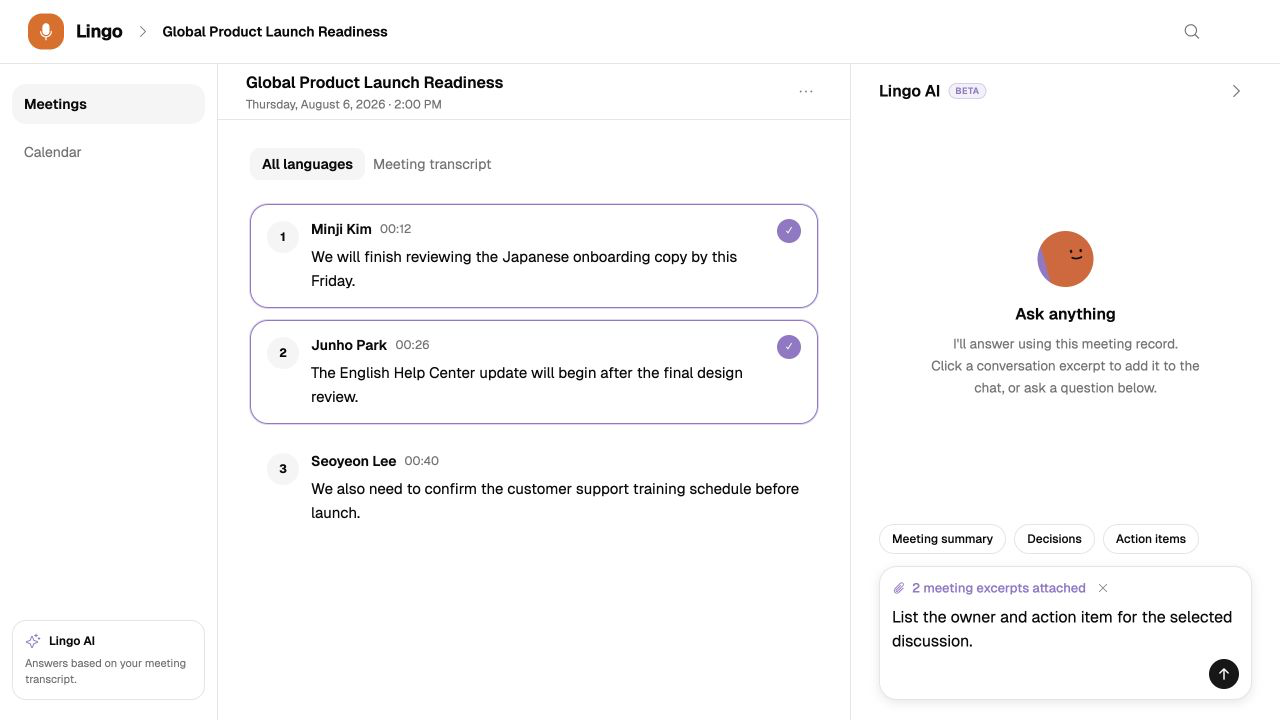
- Select an utterance block in the meeting transcript.
- Select additional utterances if you need more context.
- If Lingo AI is minimized, select Ask AI in the selection bar.
- Confirm N meeting excerpts attached above the composer.
- Enter and send your question.
Select the attachment indicator to review the attached speakers and text. Remove one item with its remove button, or select Clear all selections to remove every attachment.
Attachments narrow the context for a question. If Lingo AI should consider the whole meeting, ask your question without attaching utterances.
Ask with AIP Agents
Select an AIP Agent that you enabled in settings to connect meeting context with another business system or request follow-up work.
- Select the + button on the left side of the composer.
- Select one or more AIP Agents under Agents. You can also type
@followed by a name to search. - Describe the task and target system, then send the question.
You can select up to 10 AIP Agents in one question. Lingo AI may not call a selected AIP Agent when it is not relevant. See AIP Agents for setup and selection details.
Attach files
Select the + button on the left side of the composer, then select Upload file to attach audio, images, text, or other file types. Wait for the file card to show Ready before sending the question.
Supported images and text can show a preview. General files such as PDFs, spreadsheets, and archives may appear as download-only cards. Files returned by an AIP Agent can also be previewed or downloaded from the response.
Reset the chat
After a question and answer exist, select the trash button or the more-actions menu and choose Reset Lingo AI chat.
Resetting deletes all Lingo AI questions and answers for that meeting. It does not delete the original transcript or translations. If an answer is still being generated, wait for it to finish before resetting.
Lingo AI and AI Summary
AI Summary on the meeting detail page creates a single result from a predefined template or custom prompt. Lingo AI is designed for free-form questions, follow-up questions, and questions focused on selected utterances.
| Feature | Best used for |
|---|---|
| AI Summary | Creating a formatted summary, minutes, or action-item report in one step |
| Lingo AI | Exploring the meeting through multiple questions and follow-ups |
Troubleshooting
| Situation | What to check |
|---|---|
| An answer could not be generated | Wait briefly, then select Try again or send the question again. |
| A connection recovery message appears | Wait for the network connection to recover. Lingo checks the completion status automatically. |
| Credits are insufficient | Add organization credits in AIP, then retry answer generation. |